Installation
To get a local copy up and running, please follow these simple steps.
Prerequisites
Here is what you need to be able to run Cal.
- Node.js
- PostgreSQL
- Yarn (recommended)
If you want to enable any of the available integrations, you may want to obtain additional credentials for each one. More details on this can be found below under the integrations category.
Setup
-
Clone the repo
git clone https://github.com/hiboxco/hiboxscheduler.git -
Go to the project folder
cd cal.com -
Copy
.env.exampleto.envcp apps/web/.env.example apps/web/.env cp packages/prisma/.env.example packages/prisma/.env -
Install packages with yarn
yarn
Quick start with yarn dx
- Requires Docker and Docker Compose to be installed
- Will start a local Postgres instance with a few test users - the credentials will be logged in the console
yarn dxManual setup
-
Configure database in the
packages/prisma/.envfile. Replace<user>,<pass>,<db-host>,<db-port>with their applicable valuesDATABASE_URL='postgresql://<user>:<pass>@<db-host>:<db-port>'If you don't know how to configure the DATABASE_URL, then follow the steps here to create a quick DB using Heroku
-
Create a free account with Heroku (opens in a new tab).
-
Create a new app.

-
In your new app, go to
Overviewand next toInstalled add-ons, clickConfigure Add-ons. We need this to set up our database.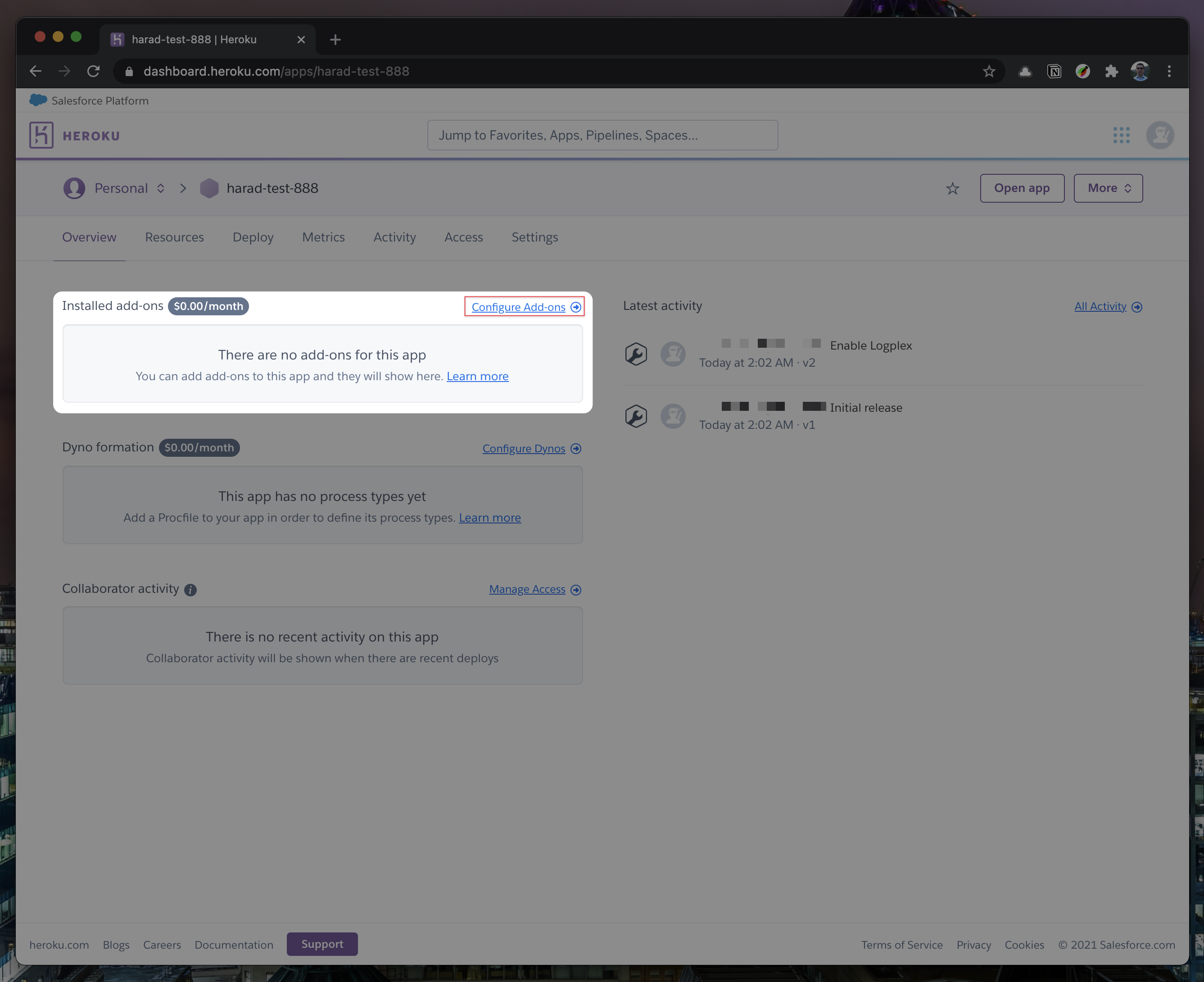
-
Once you clicked on
Configure Add-ons, click onFind more add-onsand search forpostgres. One of the options will beHeroku Postgres- click on that option.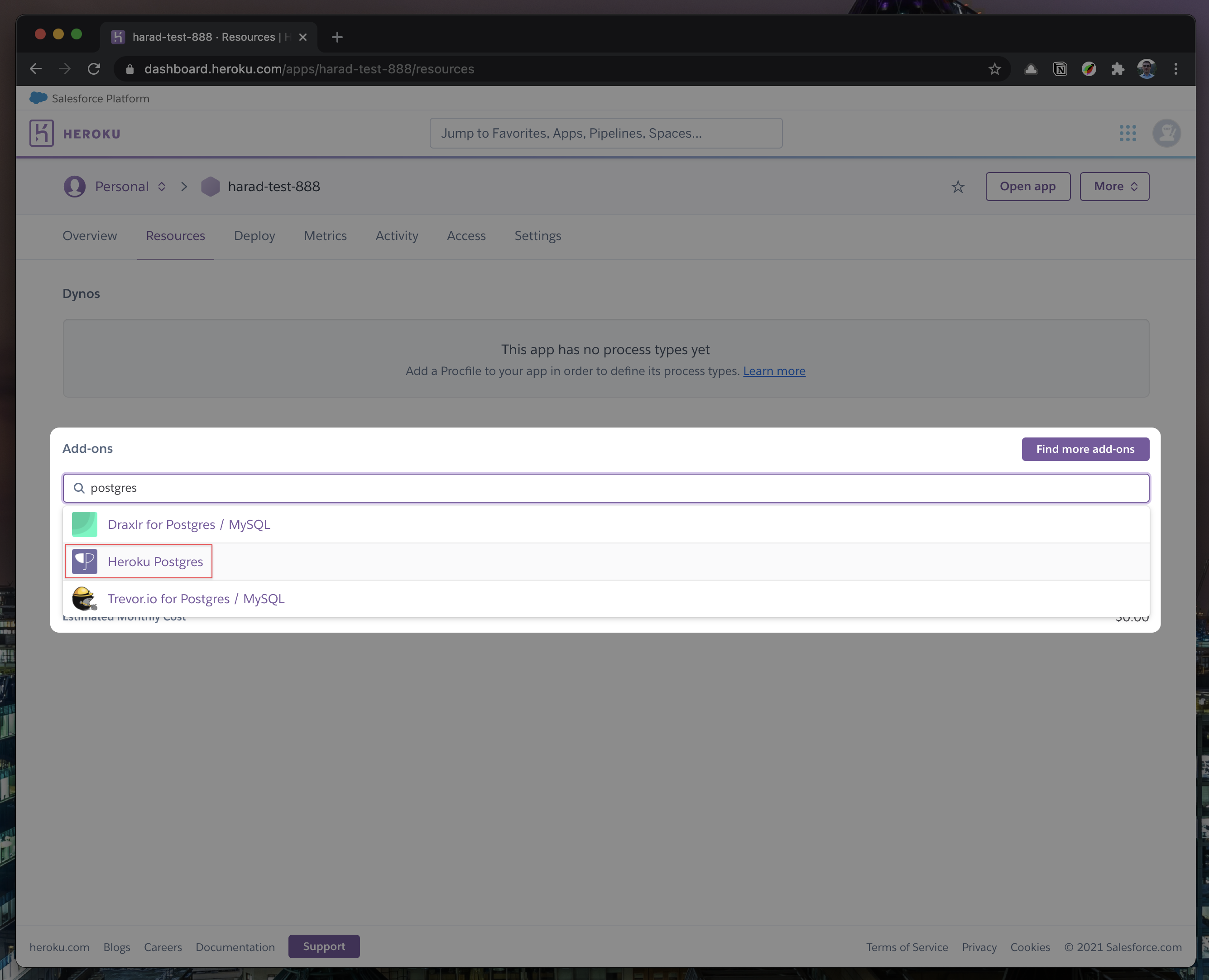
-
Once the pop-up appears, click
Submit Order Form- plan name should beHobby Dev - Free.

-
Once you completed the above steps, click on your newly created
Heroku Postgresand go to itsSettings.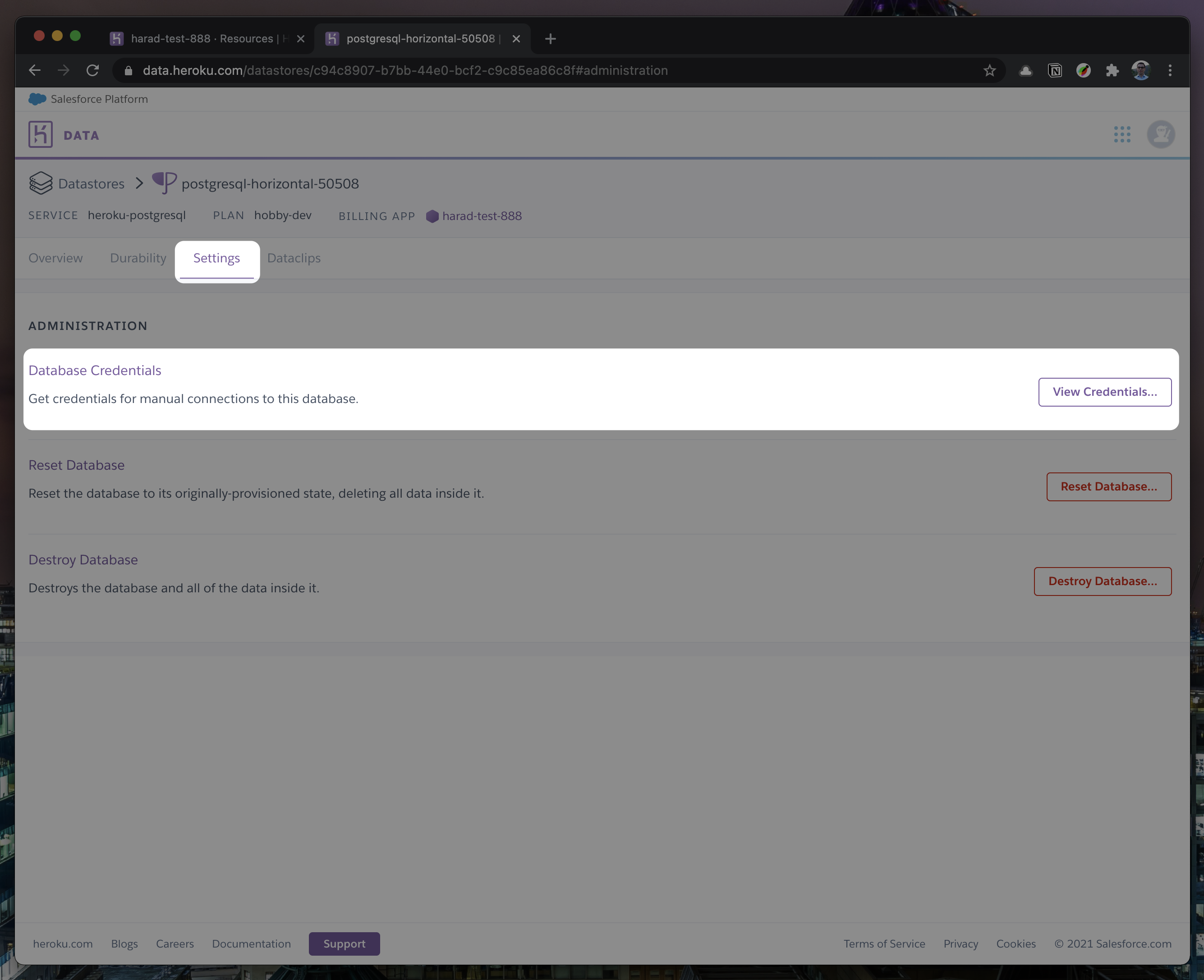
-
In
Settings, copy your URI to your scheduler.hibox.co .env file and replace thepostgresql://<user>:<pass>@<db-host>:<db-port>with it.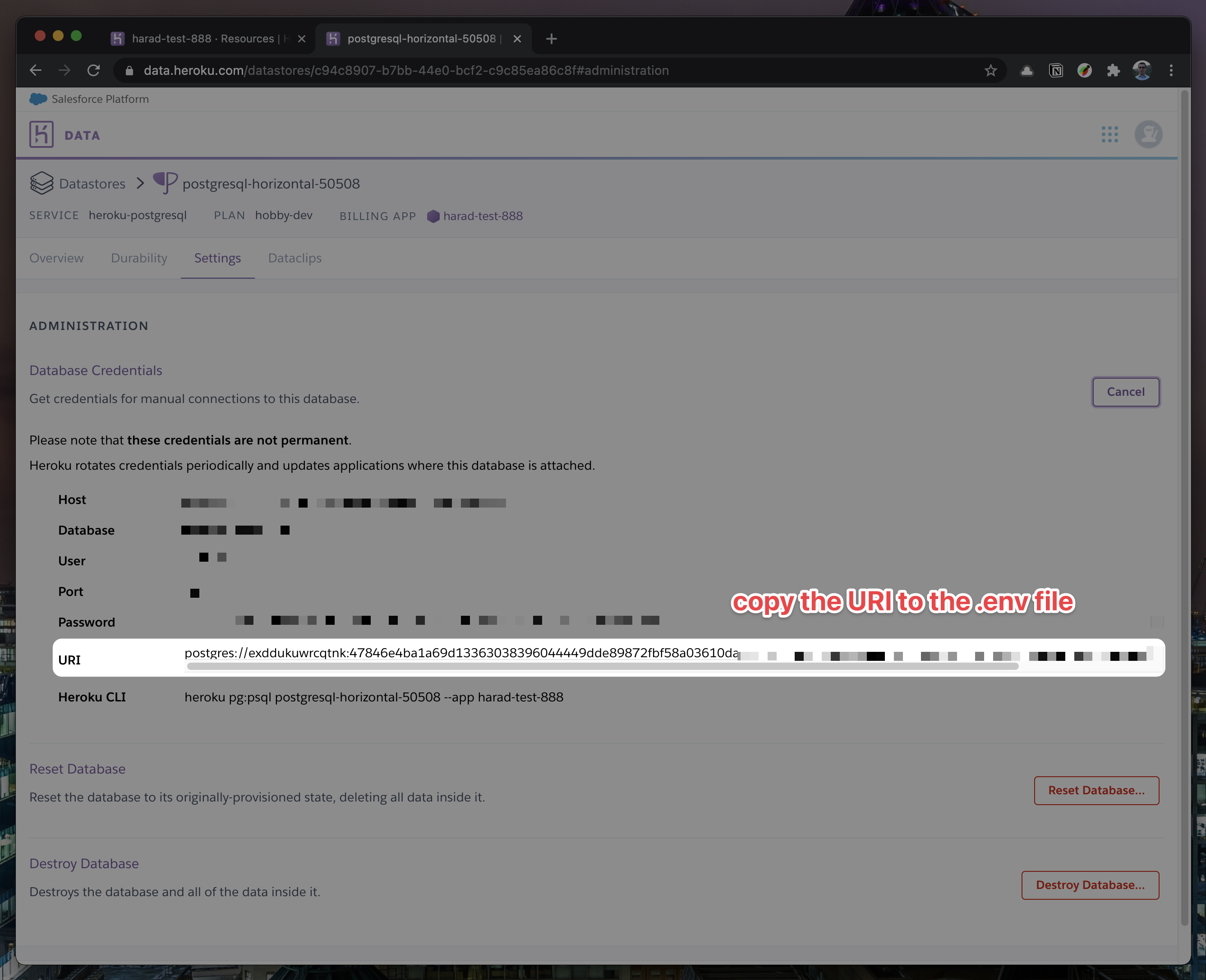

-
To view your DB, once you add new data in Prisma, you can use Heroku Data Explorer (opens in a new tab).
-
-
Set a 32 character random string in your
apps/web/.envfile for theCALENDSO_ENCRYPTION_KEY(You can use a command likeopenssl rand -base64 24to generate one). -
Set up the database using the Prisma schema (found in
packages/prisma/schema.prisma)yarn workspace @calcom/prisma db-deploy -
Run (in development mode)
yarn dev
Setting up your first user
-
Open Prisma Studio (opens in a new tab) to look at or modify the database content:
yarn db-studio -
Click on the
Usermodel to add a new user record. -
Fill out the fields
email,username,password, and setmetadatato empty{}(remembering to encrypt your password with BCrypt (opens in a new tab)) and clickSave 1 Recordto create your first user.New users are set on a
TRIALplan by default. You might want to adjust this behavior to your needs in theprisma/schema.prismafile. -
Open a browser to port 3000 (opens in a new tab) and login with your just created, first user.